Home theater
Copyright © Quectel Wireless Solutions Co., Ltd. 2026. All rights reserved.
The home theater project is developed based on the Quectel Pi M2 smart single-board computer and uses the Kodi open-source media center software as its core to build a home theater system that integrates media playback, library management, and multi-scene adaptation. This project achieves one-stop integration and high-definition playback of local and online media resources, fully meeting the diverse needs of home audio-visual entertainment and providing users with a high-quality home entertainment experience.
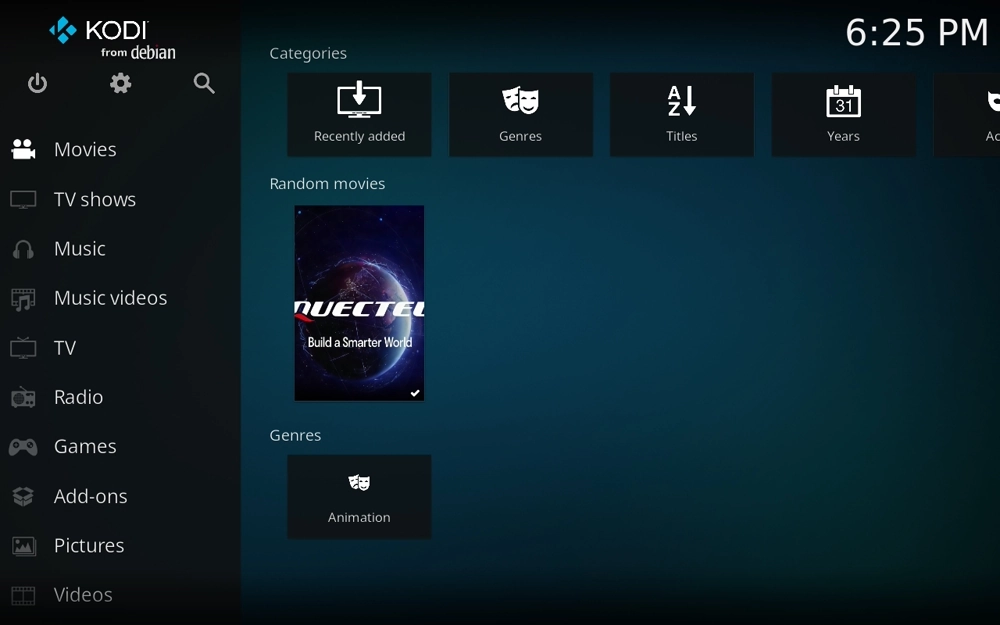
Development resources summary
Development accessories list
Accessory name |
Quantity |
Specifications |
|---|---|---|
Quectel Pi M2 smart single-board computer |
1 |
- |
USB-C power supply |
1 |
Official 45W USB Type-C Power Supply for Raspberry Pi 5, White Color, US Plug |
Micro HDMI cable |
1 |
Specification: Micro HDMI 2.0; Cable length: 1m; Interface: HDMI-A (Male) - HDMI-D (Male) |
Ethernet cable |
1 |
Cable length: 1m; Transmission rate: Gigabit; |
Display |
1 |
24-inch HDMI display |
Physical reference of accessories
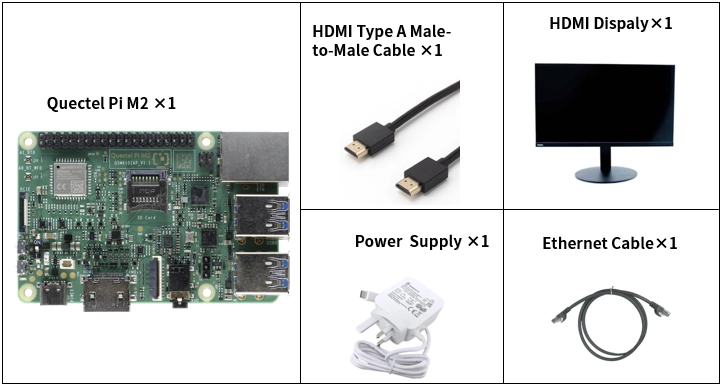
Get started quickly
Development preparation
The Quectel Pi M2 comes pre-installed with Debian 13, so no re-flashing is required. Just follow the steps below.
Hardware connection
Complete all the following hardware connections. The numbering corresponds to the interface diagram:
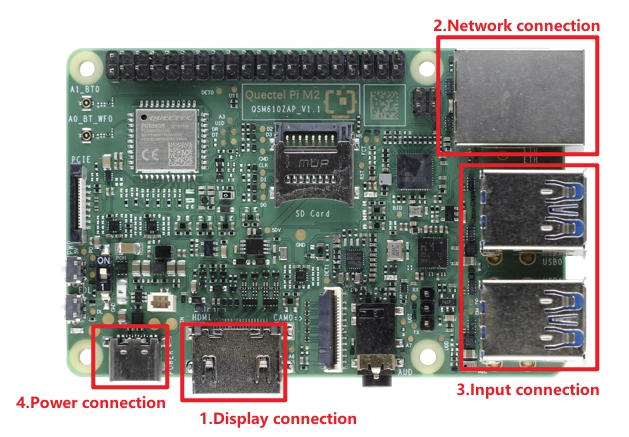
Display Connection: Choose the connection method based on your monitor’s interface. Here we use Option 2: connect one end of the Micro HDMI cable to the main board’s Micro HDMI port and the other end to the monitor’s HDMI port.
Option 1 (HD): Connect one end of the FPC ribbon cable to the MIPI port on the Quectel Pi M2, and the other end to the monitor’s MIPI port. Refer to the MIPI for details.
Option 2 (Compatible): Connect one end of the HDMI cable to the HDMI port on the Quectel Pi M2, and the other end to the monitor’s HDMI port.
Network Connection: Connect the Quectel Pi M2 Ethernet port to the router’s LAN port using an Ethernet cable.
Peripheral Connection: Plug the USB keyboard, mouse, and USB camera into the USB-A ports on the Quectel Pi M2. For wireless keyboard/mouse, simply plug the receiver into a USB port.
Power Connection: Finally, plug the USB-A end of the power cable into the power adapter, and the USB-C end into the power port on the Quectel Pi M2.
Project implementation
Update installation sources
sudo apt update
Install Kodi service
sudo apt install kodi -y
Install PVR plugin
sudo apt install kodi-pvr-iptvsimple -y
Ensure the video acceleration API is initialized correctly during Kodi startup. To add the user to the groups, please use the following command:
sudo usermod -a -G cdrom,audio,render,video,plugdev,users,dialout,dip,input $USER
Ensure the user running Kodi belongs to the following groups (for example, for user pi)
groups username
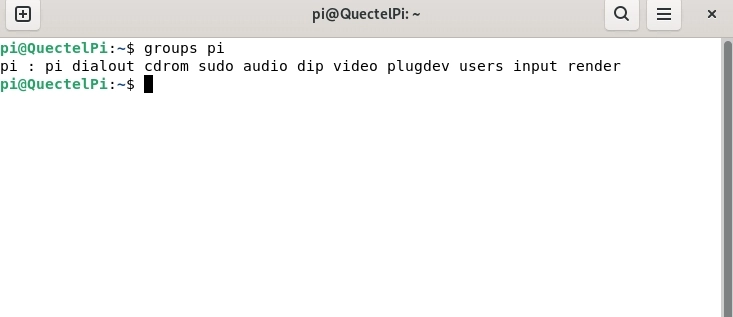
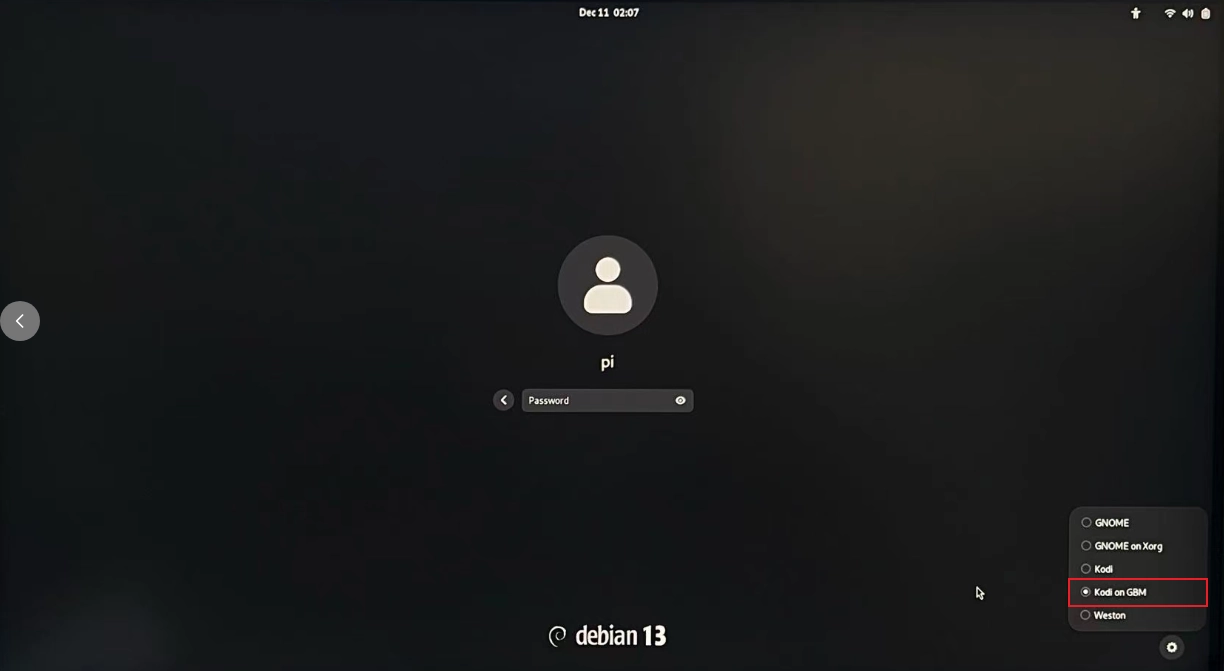
After restarting, select “Kodi on GBM” in the gear icon at the bottom right of the login interface to run the Kodi service.
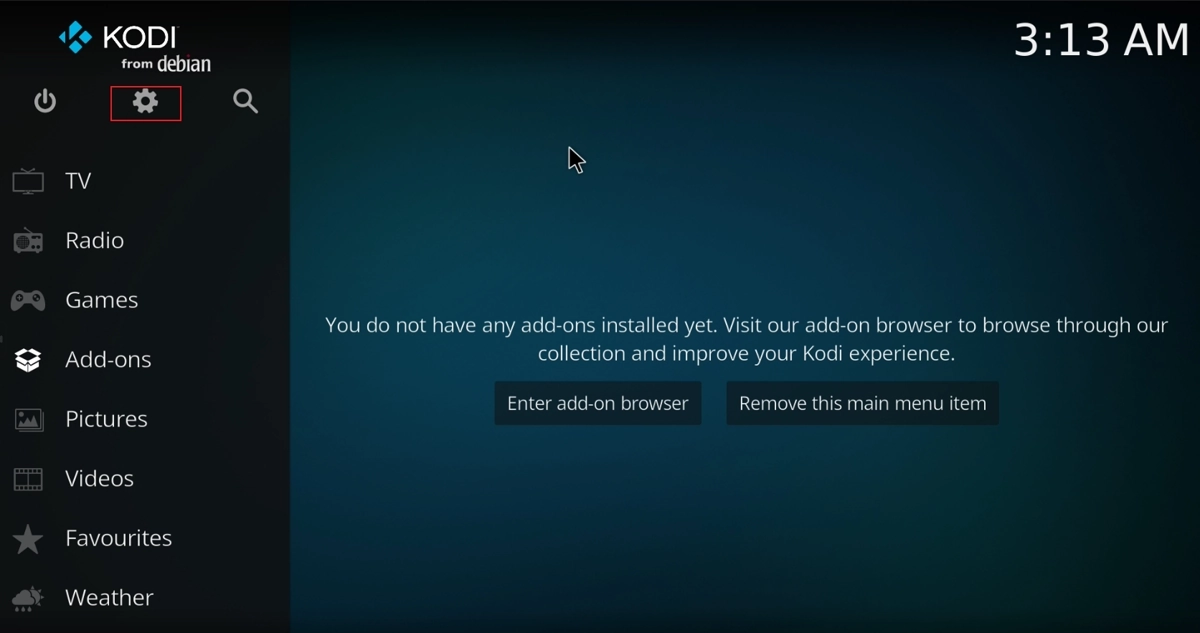
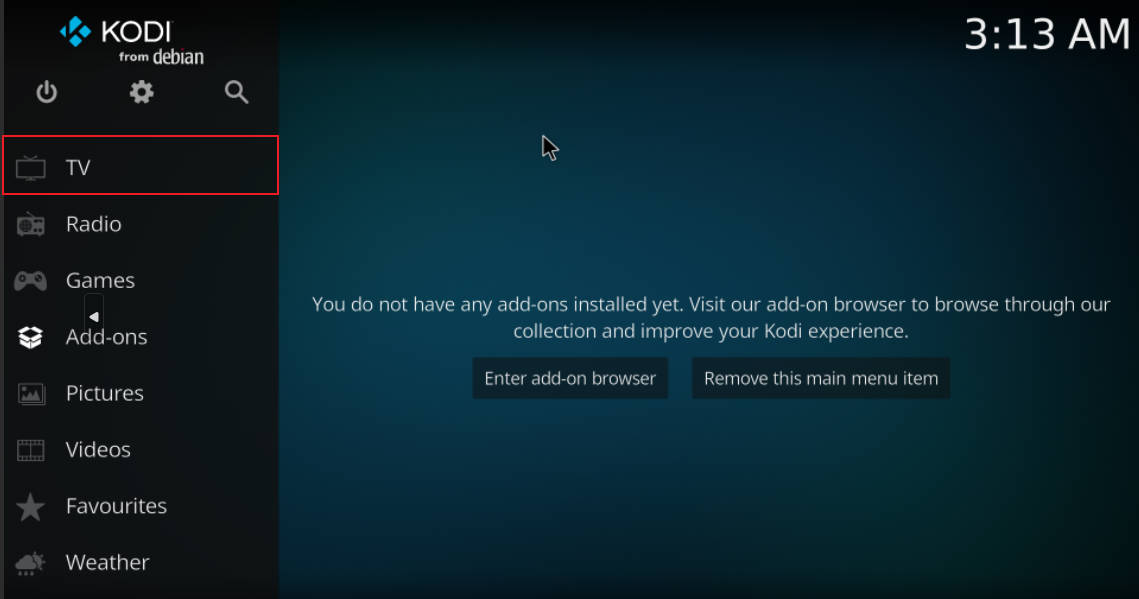
After entering Kodi, we will be asked whether to enable the installed plugin. We can choose NO and set it later. Then the options Enter add-on browser and Remove this main menu item will appear. Click the gear icon in the upper left to enter settings.
Add plugin
For convenient operation, we can use “” to switch Kodi between fullscreen and windowed mode.
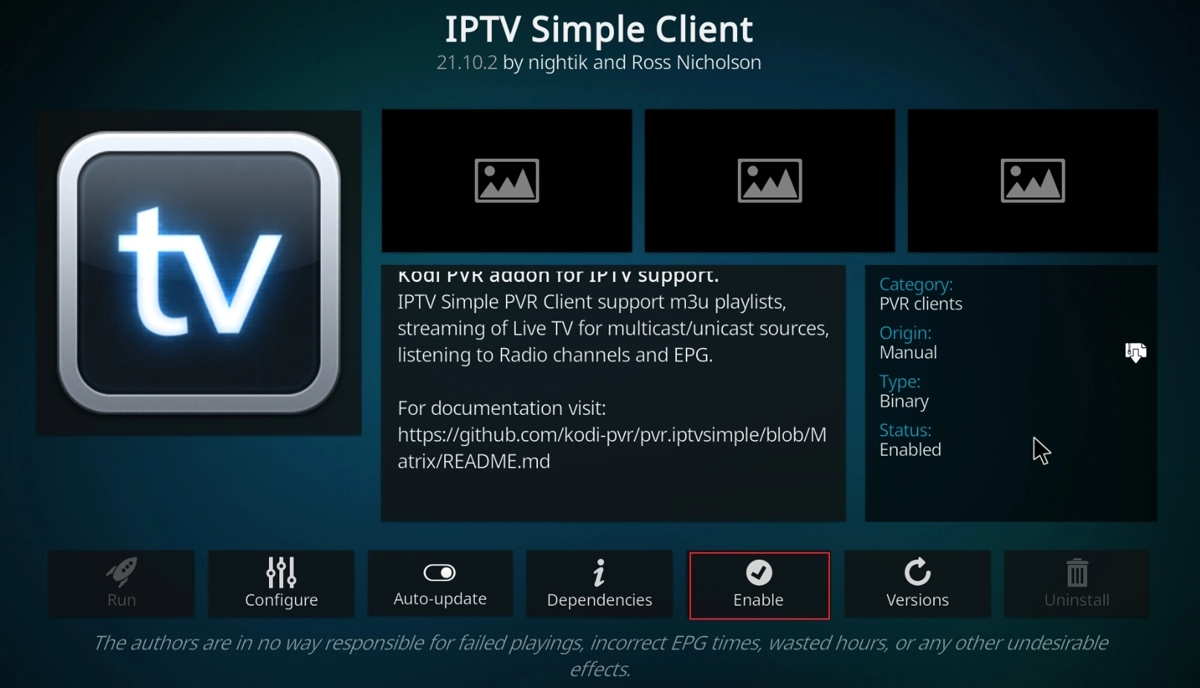
We have already installed IPTV Simple Client through the terminal command. So we click Add-ons→My Add-ons→PVR clients to find IPTV Simple Client, then click it to configure.
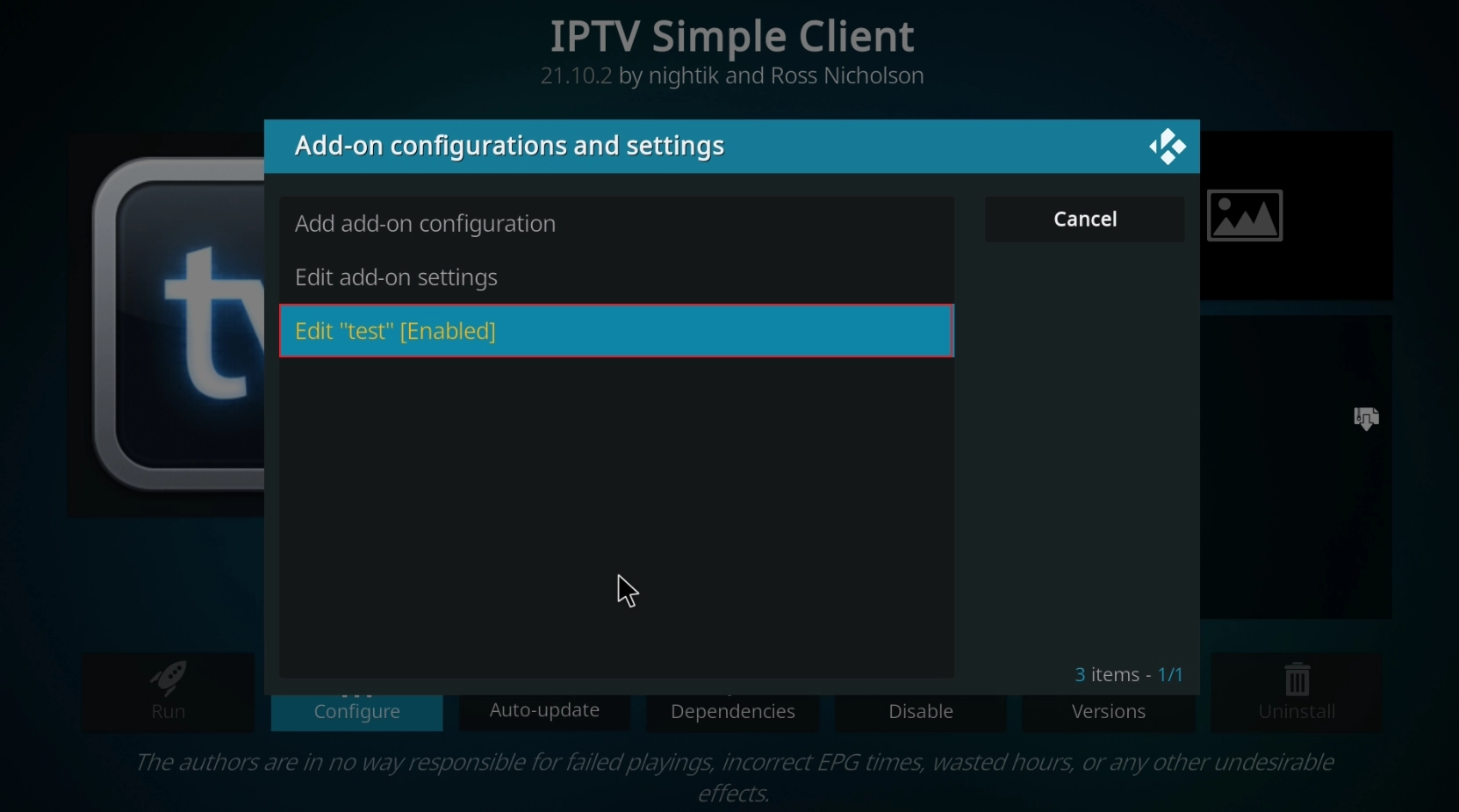
Add source
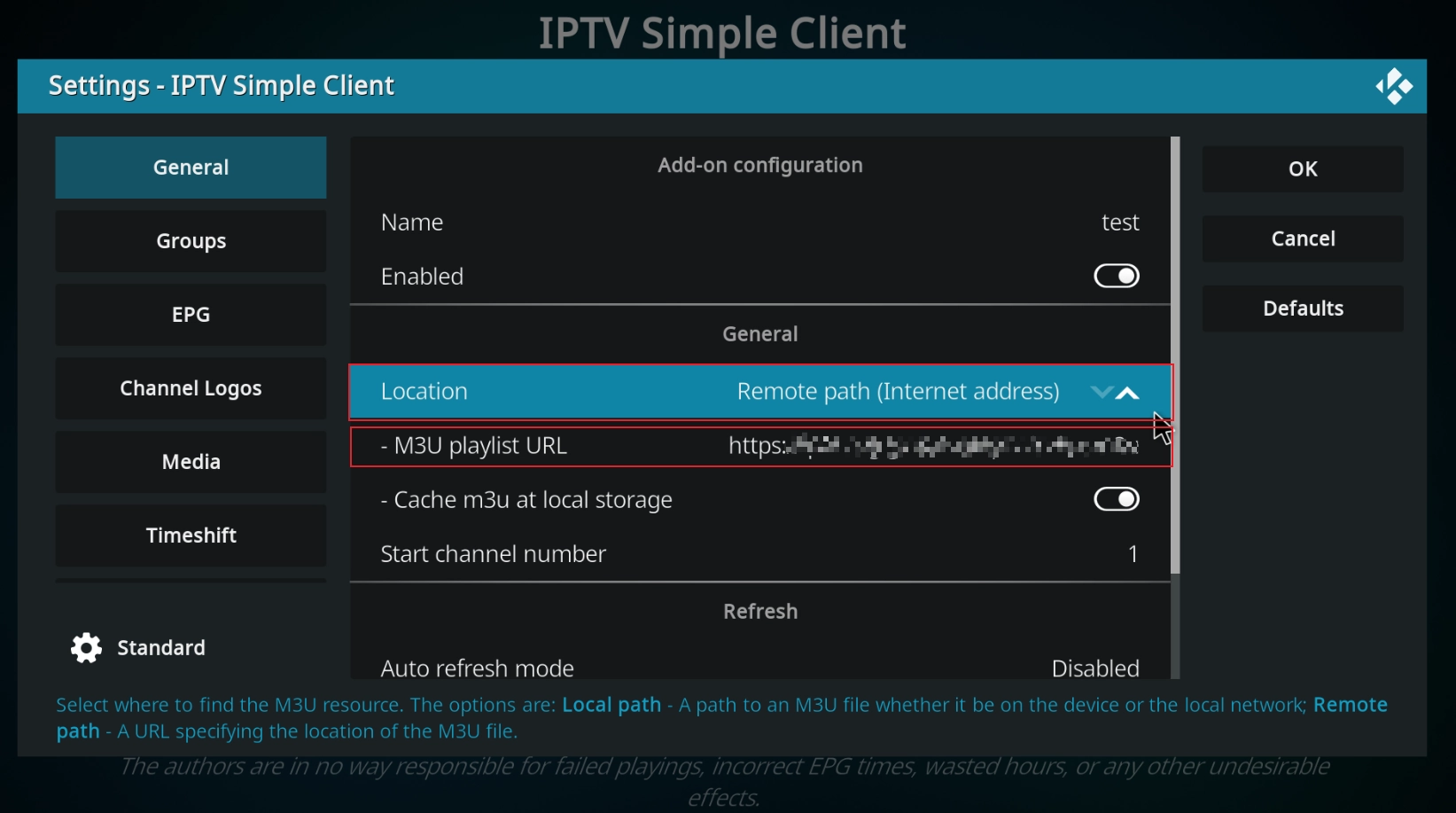
The location defaults to remote path. You can switch to local path by clicking the up/down toggle on the right. Select the live source file directory in the M3U playlist path. (Live source files are generally M3U8, which can be searched online, downloaded and stored locally, or accessed via URL remote path.) Here we choose to load the live source via remote path. Enter the remote URL into the “M3U playlist URL bar”, click OK, Enable, then press ESC to return to the navigation interface.
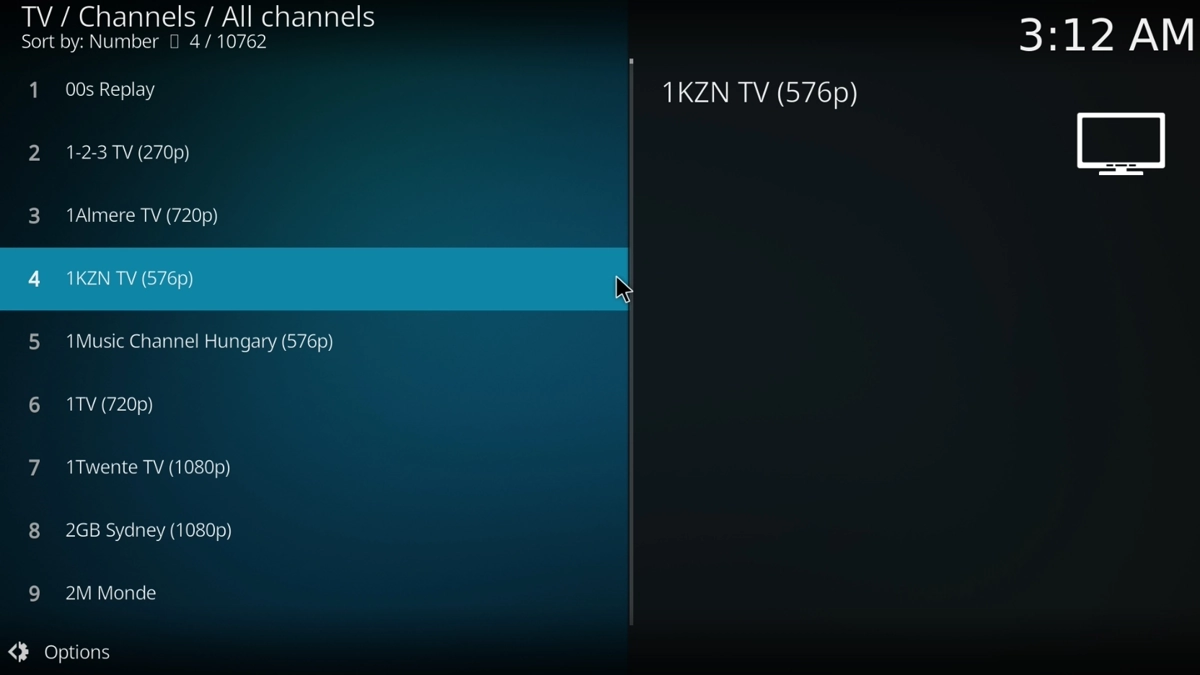
Press ESC to return to the main interface, click the TV bar, select your favorite program, and you can start watching.
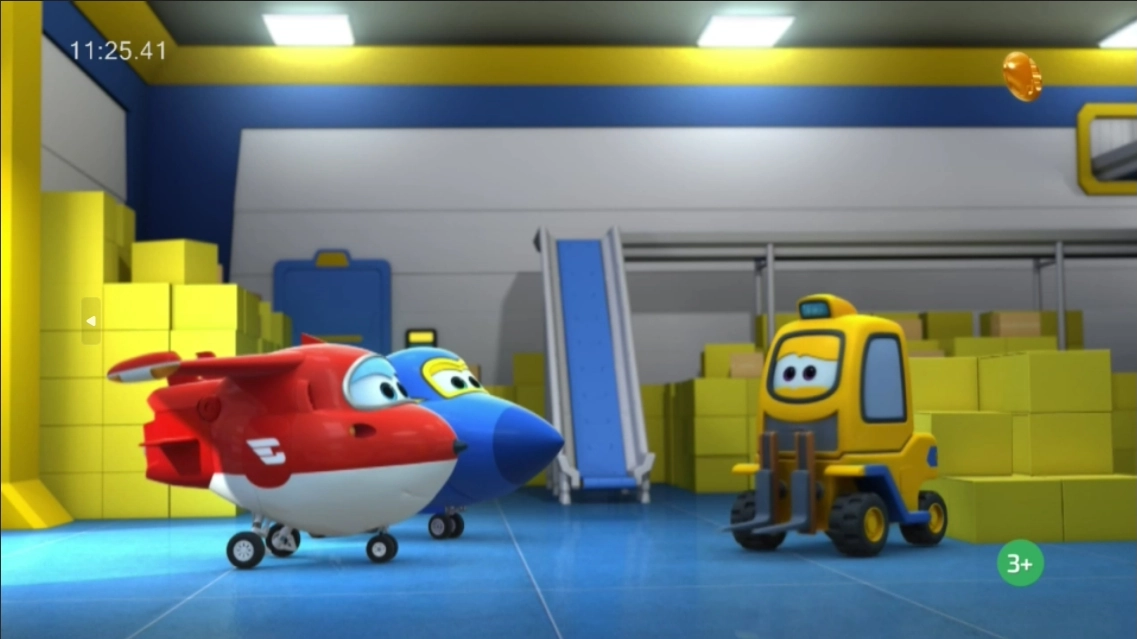
Note: Currently, only low frame rate TV programs can be played. Hardware video decoding is still being adapted. Please pay attention to Quectel developer website for more information.
Advanced usage
Here we introduce how to import movies, videos and other resources to play on Kodi.
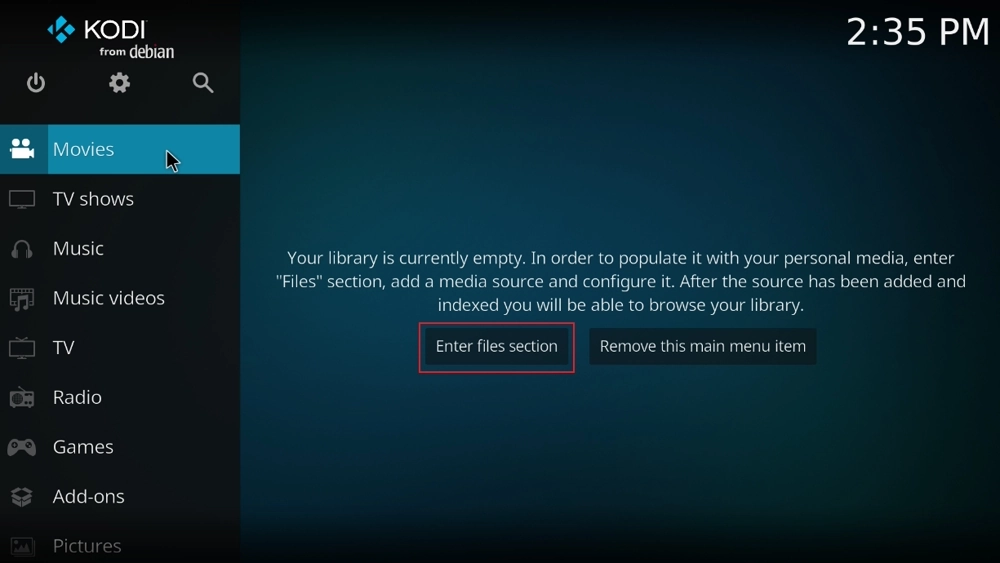
Step 1: In the Movies interface, click Enter files section -> Add videos to add resources.
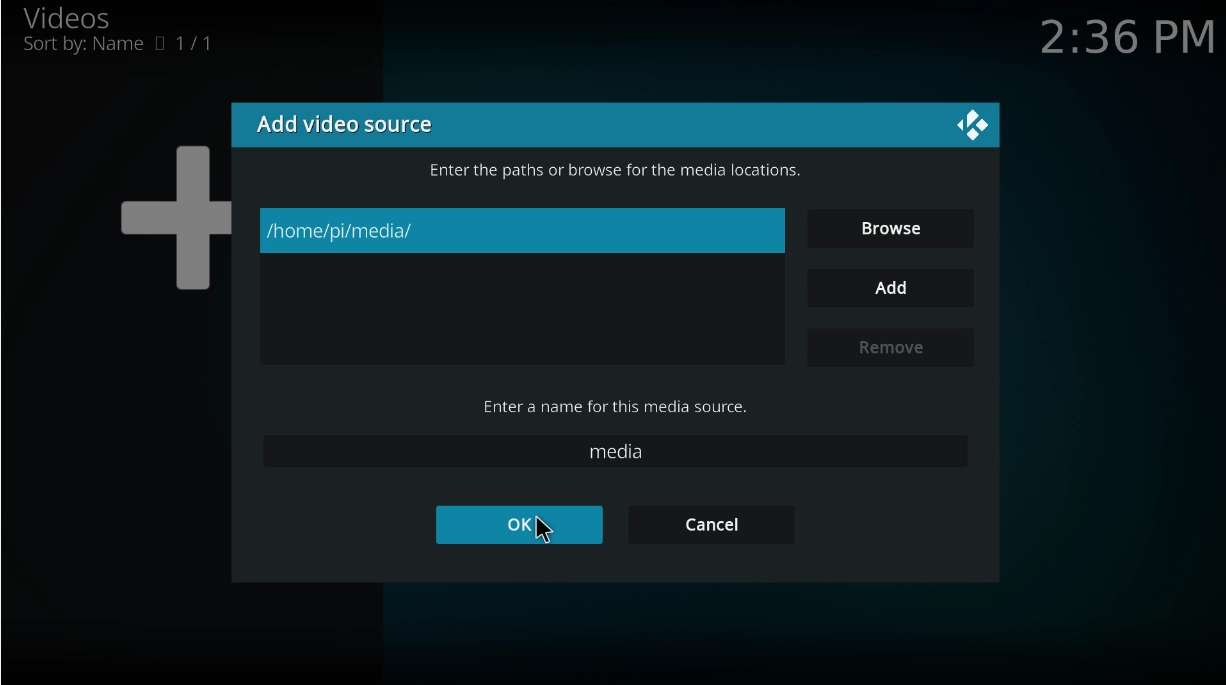
Step 2: Select the path where the imported resources are stored, then click OK (here my resources are stored in /home/pi/media).
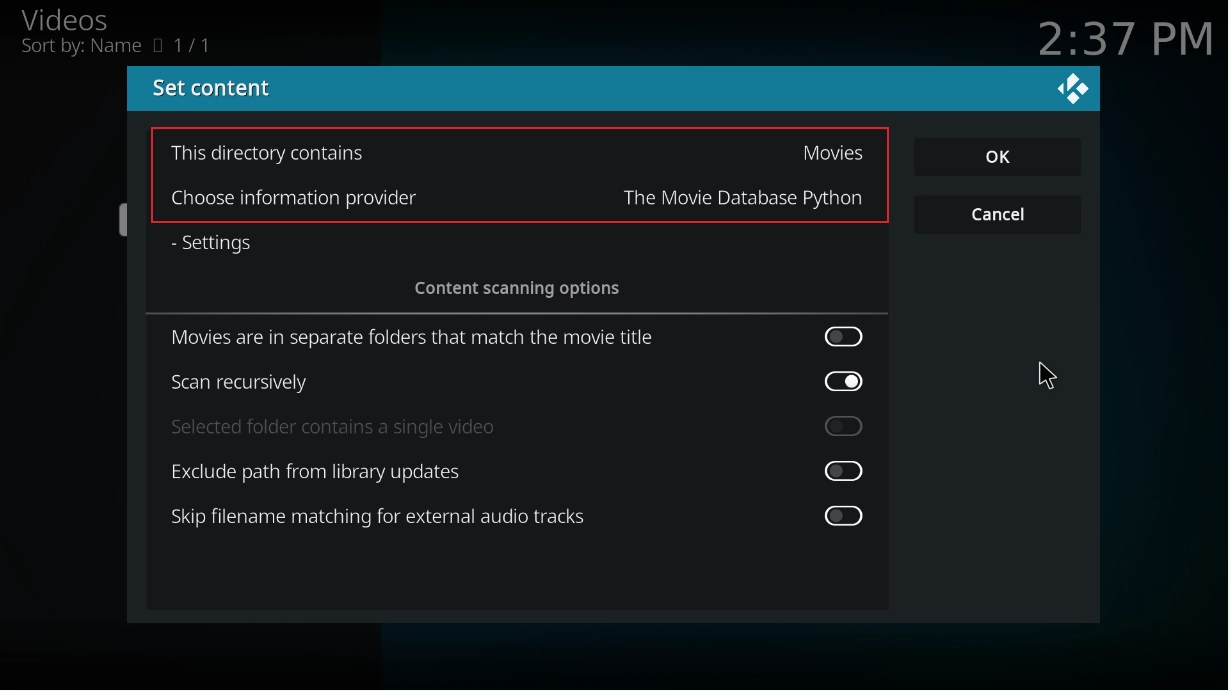
Step 3: Set the resource type to Movies, other options remain default, then click OK. It will prompt whether to update information, select Yes. Kodi will automatically scan the videos in the folder and download covers, descriptions and other information from the internet. After scanning is complete, return to the Movies interface, and you will see movies with covers.
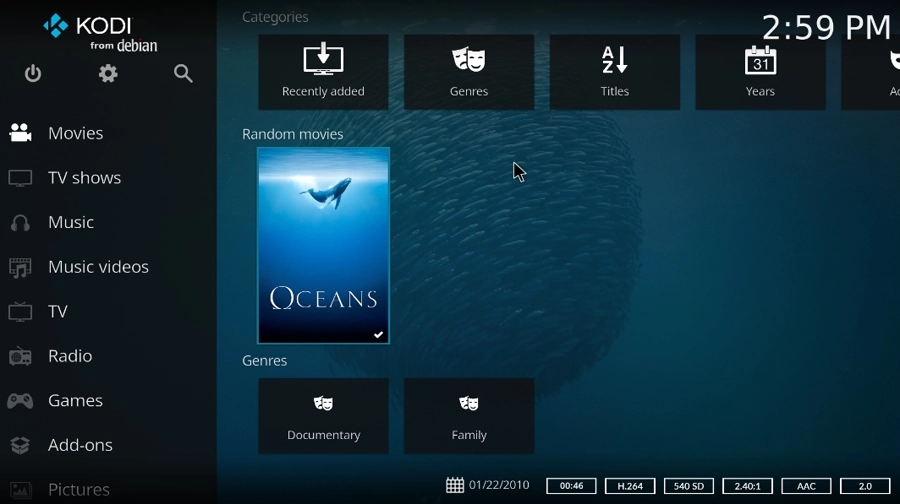
Note: The above operation is based on the condition that the information of imported videos can match with online resources. If unable to match, the videos will not be loaded to the Movies interface.
Next, we introduce the method of importing customized resources.
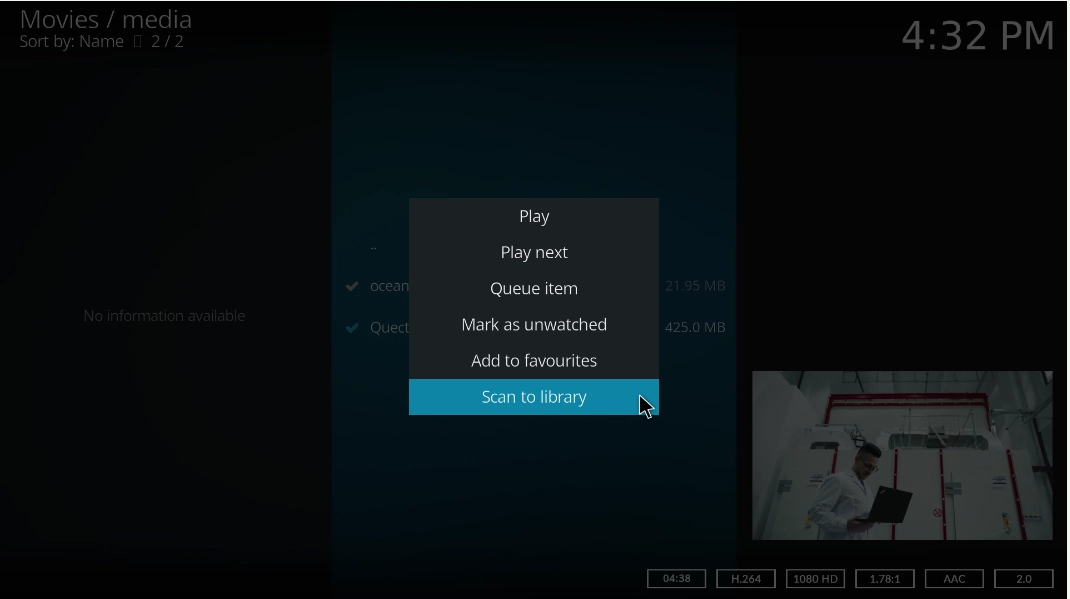
Step 1: Click the Movies interface to enter the video storage folder, select the video with cursor and press the right mouse button, then select Scan to library.
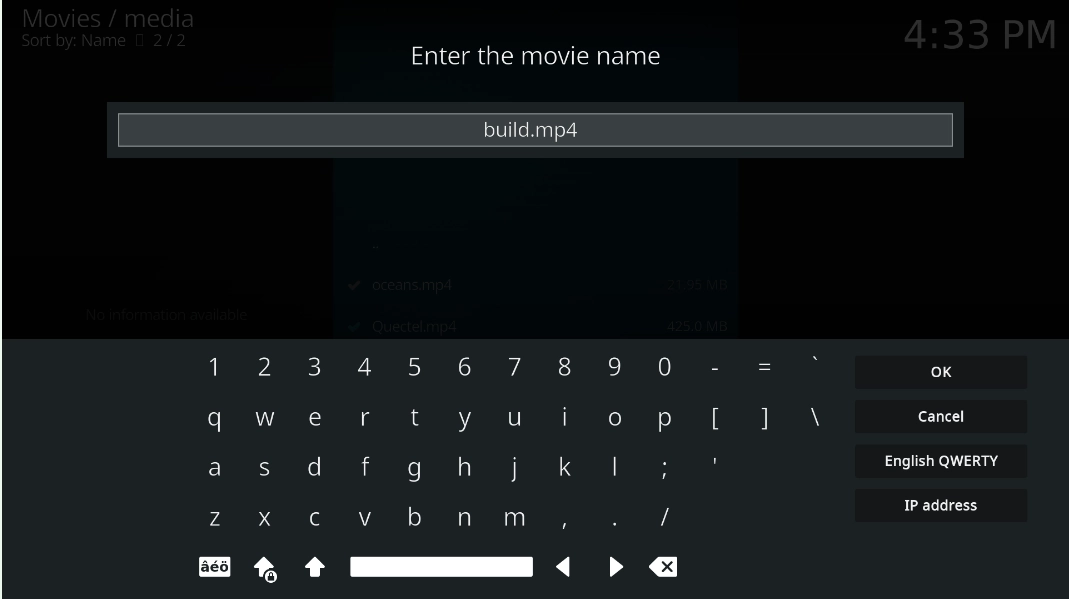
Step 2: Enter the movie name, which needs to be changed to a name that can match with online resources, such as: bulid.mp4.
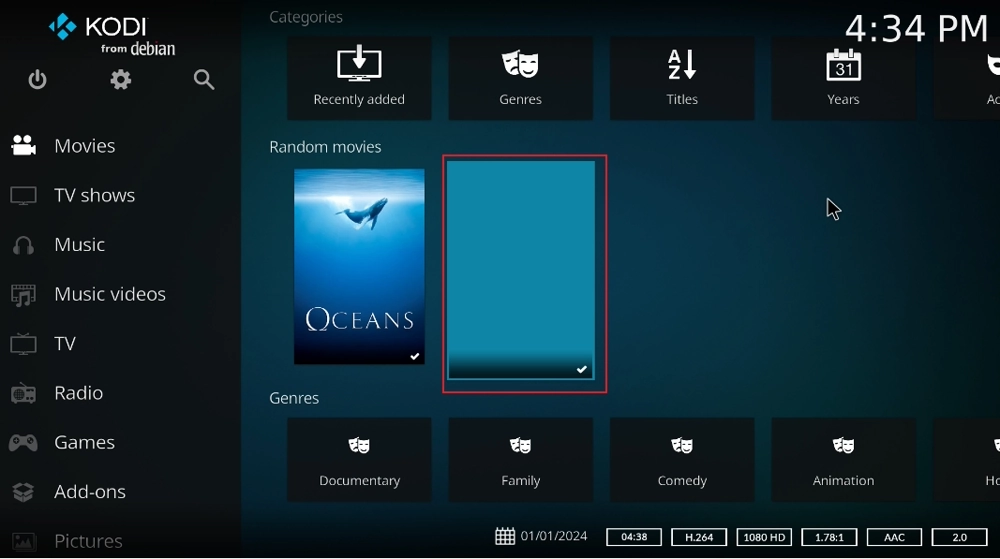
Step 3: After information matching, a prompt box will appear, select Yes, double-click to select any matching movie, then press ESC to return to the Movies interface. At this point, we can see the customized video without a cover.
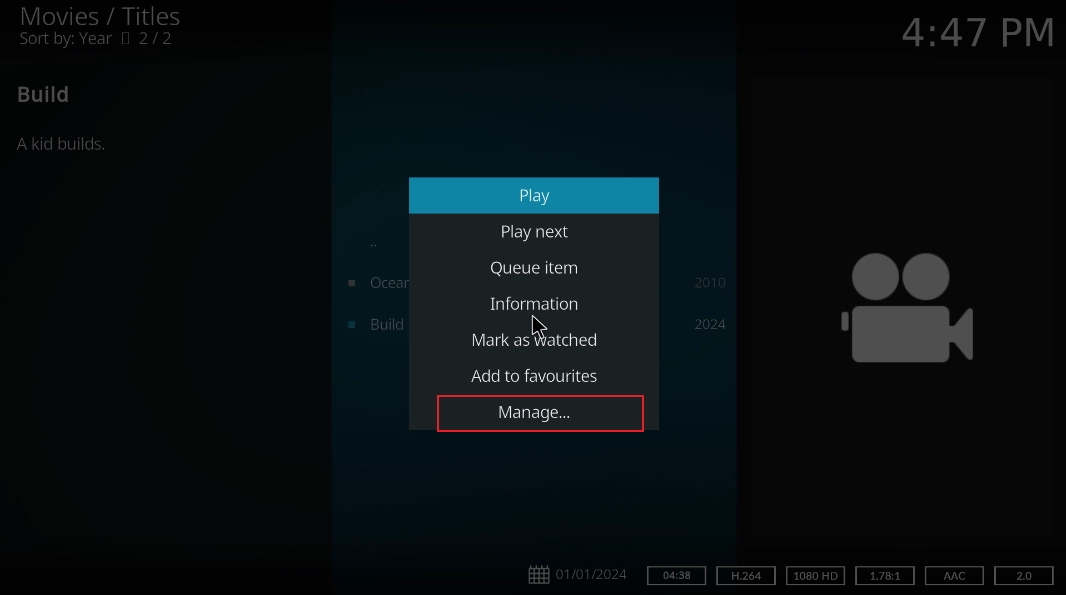
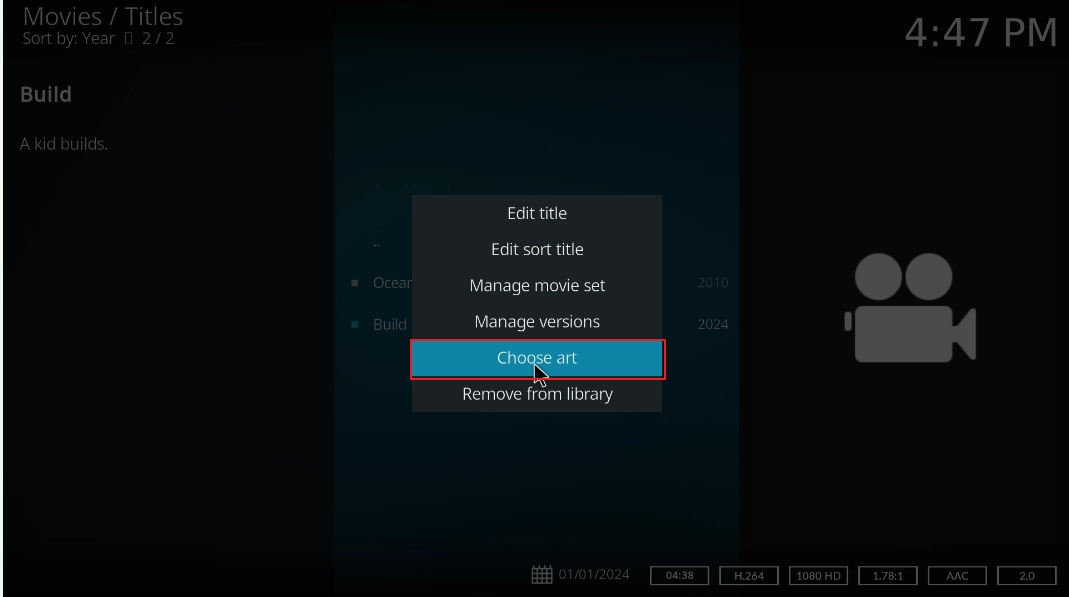
Step 4: Click the Movies interface, right-click on the customized video and select Manage, where you can modify the movie name, genre classification, etc.; click Choose art->Poster, select the picture that already stored in the imported folder to change the video cover.
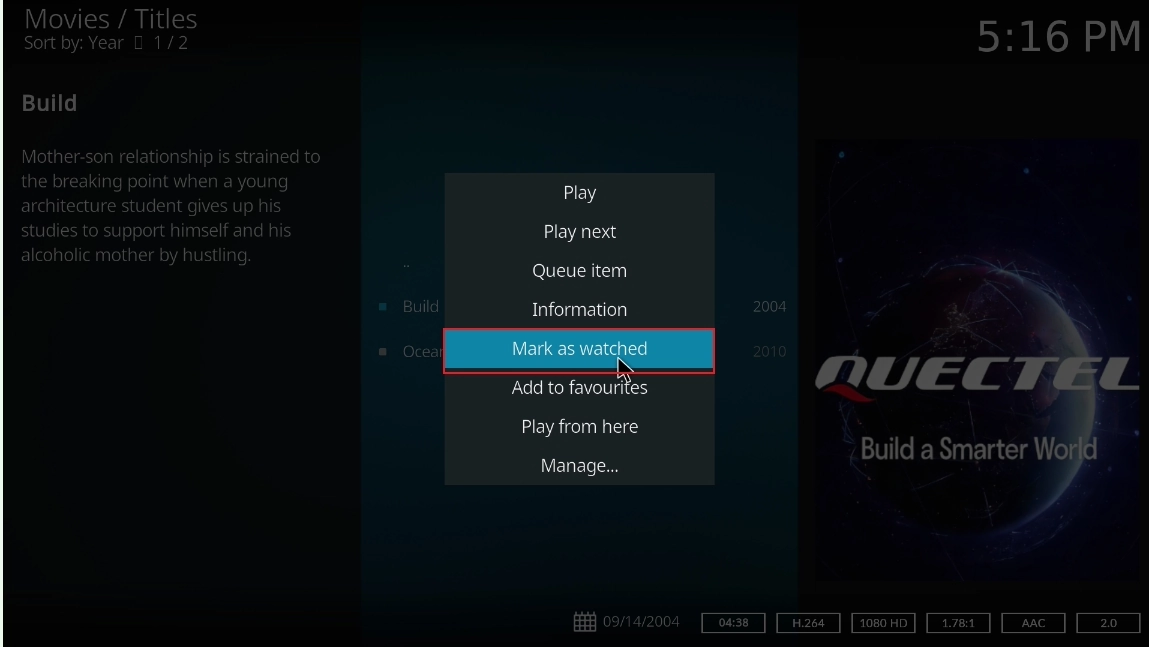
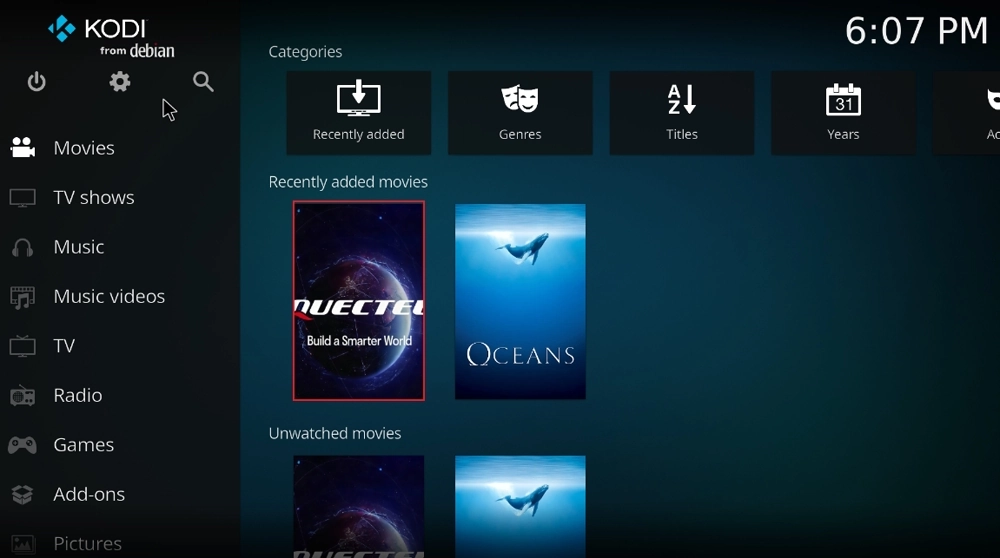
Step 6: Press Esc to return to the initial interface, then right-click on the video and select Mark as Watched, finally return to the Movies interface, and you can see the customized video with the changed cover.
Technical Support and Contributions
If you encounter any issues during use, please submit technical inquiries on the Quectel Official Forum. Our technical support team will respond promptly.